Showing posts with label HTML. Show all posts

Top 10 Blogger tools you can count on

As a Blogger we all need tools to create our Articles in an easy and the quickAllest way possible.

These free tools  are the utilities I personally use when writing an article. I hope you find it all useful. The list are presented in a sequential manner from preparing your materials up to publishing your article.


1) Screen Hunter

ScreenHunterlets you capture desktop screenshots for your articles. This Software is very easy to use. Upon Installation you just need to setup two options (HotKey and the location to save images) then you are ready to go.

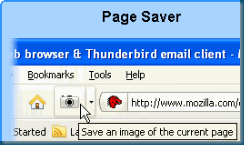
2) Page Saver

PageSaverIf you need a Screenshot of a Web page, you can also use Screen Hunter to capture portion of the web page you wish to save. But how about when you want to capture the whole page including those that are not visible? Then Page Saver lets you to save an Image of Visible portion, an Entire page or even a Frame of a Web page you are currently viewing.

3) Paint.Net

PaintDotNet After you completed saving Images, You’re going to need some graphics editor like Paint.Net. This utility resemble Photoshop’s functionality in a simplified and easy to use manner. If you just need to crop or resize an Image, Spare yourself from using time consuming and memory expensive Graphics editor specially when loading.

4) Windows Live Writer

WindowsLiveWriter  When all of your materials are ready. Instead of using a Web Designer of any kind, Windows Live Writer is specifically designed for Bloggers like us. The ease of use and publishing of this utility is totally awesome.

One feature I love most with this document writer is the retrieving of your published articles in a snap. You can also manage multiple blog site all on this software. Many blog services are supported including Wordpress, Blogger, TypePad and others.

5) NotePad++

NotePadPlus2  When you started to enjoy Windows Live Writer, You’ll notice that the writer’s source view editor is not purely an HTML editor as oppose to real Web Designer’s tool. When I want to tweak some Gadget’s or HTML/Javascript, I just save it to an HTML or XML format then view and edit the file instantly with NotePad++. This utility support different formats like HTML, XML, CSS and many more.

6) ColorZilla

ColorZilla  Have you encountered the need to find out the color of an area of a cool website you are currently viewing? Well, in ColorZilla, Color Picking is a snap. You can say goodbye to something like Color Chart. Because once installed, this utility can pick colors instantly. The software comes as a plug-in in Firefox and  install a button on the leftmost bottom of the browser’s window. All you need is click that and point to the section of a webpage to which color you are interested of.

7) TubeChop

TubeChop  What if you find a Video that is good for your article but you only need a portion of it? Then by the sound of TubeChop you should know what I mean.

8) Woopra

Woopra  Woopra (BETA) for me is one of the best Web Analytics around the internet. I currently have six of my Blog site registered on their site.

The registration is by approval. I was lucky enough to have my sites approve in just 3 days. If ever, you have to wait for the next batch approval when you sign-up. But If you are in a hurry try GetClicky.which give you only one site to monitor for a free account.

9) DropBox

DropBox  Of course when you already published your article, saving your documents in your desktop is not 100% safe. Who knows when your hard disk crashes. So If you prefer to have a backup online I suggest you sign-up  an account with DropBox which are giving free 2GB online storage.

10) TrueCrypt

TrueCrypt  If it’s not in your preference to save your documents online. Your documents will also be safe by downloading TrueCrypt. This utility lets you create an encrypted sub-directory or mount a folder as a drive.

The main purpose of this utility is to help keep your documents safe from frying eyes. Even saving your documents at work is also secure as TrueCrypt features an alternative folder to mount as an extra hidden folder that contains your real documents or files. In case you were forced by your office to reveal your password for your encrypted data the first dummy folder’s content will be shown instead.

  With that, this article is completed with ease using the tools above. Have a nice day. 


Make your Blog/Site Socialize via Google Friend Connect

If you would notice, I just incorporated Google’s friend connect above the status bar of the browser. That bar is called “Social Bar”.

FriendConnect0

Many of us follow fellow Bloggers via the “Followers widget” provided by the BlogSpot template. But this widget serves nothing than just collect and display list of your friends.

FriendConnect

Now to put that widget more useable, Make it alive  via “Social Bar”. All you have to do is go to “Google Friend Connect” and sign-in using your Google account. After signing in you will see Blog/web sites you added as well as your followers for each.

FriendConnect1

To Install the Bar, select “Social Bar” under the Blog/Site you wish to have Friend Connect gadgets. Then follow the simple instruction and modify options that suite your needs. There is a button to generate HTML code for pasting into your sites. One thing worth mentioning here is that there is no instruction where to put that code. So I advise that you put the code just above your template’s </body> Tag.

There is an option to put the “Social bar” on the entire site or a selected page. I opted to put the Bar across my site.

FriendConnect2

Another exciting widget that you can add is the “Add a Sign in gadget” under “Members Gadgets”. This gadget enable visitors to sign in to your site without the hassle of managing a database. If you’re a BlogSpot user, just add an “HTML/JavaScript widget” and paste the code provided in “generate code” button.

Website owners will now be able to use the “Followers widget” which is native to BlogSpot. As BlogSpot user, You may retain the widget already installed on your template or use the version from Friend Connect. I myself replaced the default widget for added control.

The next widget is “Social gadgets” which showcase individual widget  functionality of the “Social Bar” plus more.

FriendConnect4

 FriendConnect6

 FriendConnect5

I’d like to emphasize the use of “Recommend It” button above. If users recommended an Article in your site, that article will also appear on the “Social Bar” of the site’s where users opted to be a member of. Friends Connect is it?

So common friends lets put the bottom “Social Bar” on this blog into good use.

Google Friend Connect Awaken and strengthen your community. Let’s Socialize!

Note: For future reference. I created a central page for charts/tables/links at this location

Build your community
Anyone can join your site and discover other members by using information from a variety of services, including Google, Yahoo, Twitter, AOL, orkut, and Plaxo, strengthening your community as visitors become members.

Increase engagement
Choose social features from a catalog of gadgets created by Google and the OpenSocial developer community to keep your visitors more deeply engaged with your site and with each other.

No programming required
Simply copy and paste a few snippets of code into your site, and Friend Connect does the rest. Or use the Friend Connect APIs to integrate with existing login systems, social flows, and more.


HTML Escape Code/Characters

If you need to display HTML CODE / TAGS within your HTML document. Here is a complete list of HTML Escape codes / Embed Code you can use to display an HTML TAGS properly.

Note: For future reference. I created a central page for similar charts/tables at this location

Symbol Code Alias Symbol Code Alias
€   &euro; à &#224; &agrave;
Space &#32;   á &#225; &aacute;
! &#33;   â &#226; &acirc;
" &#34; &quot; ã &#227; &atilde;
# &#35;   ä &#228; &auml;
$ &#36;   å &#229; &aring;
% &#37;   æ &#230; &aelig;
& &#38; &amp; ç &#231; &ccedil;
' &#39;   è &#232; &egrave;
( &#40;   é &#233; &eacute;
) &#41;   ê &#234; &ecirc;
* &#42;   ë &#235; &euml;
+ &#43;   ì &#236; &igrave;
, &#44;   í &#237 &iacute;
- &#45;   î &#238; &icirc;
. &#46;   ï &#239; &iuml;
/ &#47;   ð &#240; &eth;
0 &#48;   ñ &#241; &ntilde;
1 &#49;   ò &#242; &ograve;
2 &#50;   ó &#243; &oacute;
3 &#51;   ô &#244; &ocirc;
4 &#52;   õ &#245; &otilde;
5 &#53;   ö &#246; &ouml;
6 &#54;   ÷ &#247; &divide;
7 &#55;   ø &#248; &oslash;
8 &#56;   ù &#249; &ugrave;
9 &#57;   ú &#250; &uacute;
: &#58;   û &#251; &ucirc;
; &#59;   ü &#252; &uuml;
< &#60; &lt; ý &#253; &yacute;
= &#61;   þ &#254; &thorn;
> &#62; &gt; ÿ &#255;  
? &#63;   Ā &#256;  
@ &#64;   ā &#257;  
A &#65;   Ă &#258;  
B &#66;   ă &#259;  
C &#67;   Ą &#260;  
D &#68;   ą &#261;  
E &#69;   Ć &#262;  
F &#70;   ć &#263;  
G &#71;   Ĉ &#264;  
H &#72;   ĉ &#265;  
I &#73;   Ċ &#266;  
J &#74;   ċ &#267;  
K &#75;   Č &#268;  
L &#76;   č &#269;  
M &#77;   Ď &#270;  
N &#78;   ď &#271;  
O &#79;   Đ &#272;  
P &#80;   đ &#273;  
Q &#81;   Ē &#274;  
R &#82;   ē &#275;  
S &#83;   Ĕ &#276;  
T &#84;   ĕ &#277  
U &#85;   Ė &#278;  
V &#86;   ė &#279;  
W &#87;   Ę &#280;  
X &#88;   ę &#281;  
Y &#89;   Ě &#282;  
Z &#90;   ě &#283;  
[ &#91;   Ĝ &#284;  
\ &#92;   ĝ &#285;  
] &#93;   Ğ &#286;  
^ &#94;   ğ &#287;  
_ &#95;   Ġ &#288;  
` &#96;   ġ &#289;  
a &#97;   Ģ &#290;  
b &#98;   ģ &#291;  
c &#99;   Ĥ &#292;  
d &#100;   ĥ &#293;  
e &#101;   Ħ &#294;  
f &#102;   ħ &#295;  
g &#103;   Ĩ &#296;  
h &#104;   ĩ &#297;  
i &#105;   Ī &#298;  
j &#106;   ī &#299;  
k &#107;   Ĭ &#300;  
l &#108;   ĭ &#301;  
m &#109;   Į &#302;  
n &#110;   į &#303;  
o &#111;   İ &#304;  
p &#112;   ı &#305;  
q &#113;   IJ &#306;  
r &#114;   ij &#307;  
s &#115;   Ĵ &#308;  
t &#116;   ĵ &#309;  
u &#117;   Ķ &#310;  
v &#118;   ķ &#311;  
w &#119;   ĸ &#312;  
x &#120;   Ĺ &#313;  
y &#121;   ĺ &#314;  
z &#122;   Ļ &#315;  
{ &#123;   ļ &#316;  
| &#124;   Ľ &#317  
} &#125;   ľ &#318;  
~ &#126;   Ŀ &#319;  
Non-breaking space &#160; &nbsp; ŀ &#320;  
¡ &#161; &iexcl; Ł &#321;  
¢ &#162; &cent; ł &#322;  
£ &#163; &pound; Ń &#323;  
¤ &#164; &curren; ń &#324;  
¥ &#165; &yen; Ņ &#325;  
¦ &#166; &brvbar; ņ &#326;  
§ &#167; &sect; Ň &#327;  
¨ &#168; &uml; ň &#328;  
© &#169; &copy; ʼn &#329;  
ª &#170; &ordf; Ŋ &#330;  
« &#171;   ŋ &#331;  
¬ &#172; &not; Ō &#332;  
­ &#173; &shy; ō &#333;  
® &#174; &reg; Ŏ &#334;  
¯ &#175; &macr; ŏ &#335;  
° &#176; &deg; Ő &#336;  
± &#177; &plusmn; ő &#337;  
² &#178; &sup2; Œ &#338;  
³ &#179; &sup3; œ &#339;  
´ &#180; &acute; Ŕ &#340;  
µ &#181; &micro; ŕ &#341;  
&#182; &para; Ŗ &#342;  
· &#183; &middot; ŗ &#343;  
¸ &#184; &cedil; Ř &#344;  
¹ &#185; &sup1; ř &#345;  
º &#186; &ordm; Ś &#346;  
» &#187; &raquo; ś &#347;  
¼ &#188; &frac14; Ŝ &#348;  
½ &#189; &frac12; ŝ &#349;  
¾ &#190; &frac34; Ş &#350;  
¿ &#191; &iquest; ş &#351;  
À &#192; &Agrave; Š &#352;  
Á &#193; &Aacute; š &#353;  
 &#194; Â Ţ &#354;  
à &#195; &Atilde; ţ &#355;  
Ä &#196; &Auml; Ť &#356;  
Å &#197 &Aring; ť &#577;  
Æ &#198; &AElig; Ŧ &#358;  
Ç &#199; &Ccedil; ŧ &#359;  
È &#200; &Egrave; Ũ &#360;  
É &#201; &Eacute; ũ &#361;  
Ê &#202; &Ecirc; Ū &#362;  
Ë &#203; Ë ū &#363;  
Ì &#204; &Igrave; Ŭ &#364;  
Í &#205; &Iacute; ŭ &#365;  
Î &#206; &Icirc; Ů &#366;  
Ï &#207; &Iuml; ů &#367;  
Ð &#208; &ETH; Ű &#368;  
Ñ &#209; &Ntilde; ű &#369;  
Ò &#210; &Ograve; Ų &#370;  
Ó &#211; &Oacute; ų &#371;  
Ô &#212; &Ocirc; Ŵ &#372;  
Õ &#213; &Otilde; ŵ &#373;  
Ö &#214; &Ouml; Ŷ &#374;  
× &#215; &times; ŷ &#375;  
Ø &#216; &Oslash; Ÿ &#376;  
Ù &#217; &Ugrave; Ź &#377  
Ú &#218; &Uacute; ź &#378;  
Û &#219; &Ucirc; Ż &#379;  
Ü &#220; &Uuml; ż &#380;  
Ý &#221; &Yacute; Ž &#381;  
Þ &#222; &THORN; ž &#382;  
ß &#223; &szlig; ſ &#383;  

The Code of Bloggers Panel

Page has moved

Sorry but due to unlimited space on this blog. The page you are looking for has moved. image The Code of Bloggers Central


***************Nothing follows***************


HTML Color Chart for Bloggers and Web Designers

Note: For future reference. I created a central page for similar charts/tables at this location

000000 000033 000066 000099 0000CC 0000FF
003300 003333 003366 003399 0033CC 0033FF
006600 006633 006666 006699 0066CC 0066FF
009900 009933 009966 009999 0099CC 0099FF
00CC00 00CC33 00CC66 00CC99 00CCCC 00CCFF
00FF00 00FF33 00FF66 00FF99 00FFCC 00FFFF
330000 330033 330066 330099 3300CC 3300FF
333300 333333 333366 333399 3333CC 3333FF
336600 336633 336666 336699 3366CC 3366FF
339900 339933 339966 339999 3399CC 3399FF
33CC00 33CC33 33CC66 33CC99 33CCCC 33CCFF
33FF00 33FF33 33FF66 33FF99 33FFCC 33FFFF
660000 660033 660066 660099 6600CC 6600FF
663300 663333 663366 663399 6633CC 6633FF
666600 666633 666666 666699 6666CC 6666FF
669900 669933 669966 669999 6699CC 6699FF
66CC00 66CC33 66CC66 66CC99 66CCCC 66CCFF
66FF00 66FF33 66FF66 66FF99 66FFCC 66FFFF
990000 990033 990066 990099 9900CC 9900FF
993300 993333 993366 993399 9933CC 9933FF
996600 996633 996666 996699 9966CC 9966FF
999900 999933 999966 999999 9999CC 9999FF
99CC00 99CC33 99CC66 99CC99 99CCCC 99CCFF
99FF00 99FF33 99FF66 99FF99 99FFCC 99FFFF
CC0000 CC0033 CC0066 CC0099 CC00CC CC00FF
CC3300 CC3333 CC3366 CC3399 CC33CC CC33FF
CC6600 CC6633 CC6666 CC6699 CC66CC CC66FF
CC9900 CC9933 CC9966 CC9999 CC99CC CC99FF
CCCC00 CCCC33 CCCC66 CCCC99 CCCCCC CCCCFF
CCFF00 CCFF33 CCFF66 CCFF99 CCFFCC CCFFFF
FF0000 FF0033 FF0066 FF0099 FF00CC FF00FF
FF3300 FF3333 FF3366 FF3399 FF33CC FF33FF
FF6600 FF6633 FF6666 FF6699 FF66CC FF66FF
FF9900 FF9933 FF9966 FF9999 FF99CC FF99FF
FFCC00 FFCC33 FFCC66 FFCC99 FFCCCC FFCCFF
FFFF00 FFFF33 FFFF66 FFFF99 FFFFCC FFFFFF

Sample Usage

<font color="#FF3366">
<td bgcolor="#FFFFFF">
<body bgcolor="#FFFF33">


USE META TAGS IN YOUR BLOG FOR BETTER SEO

Every blogger want their site on top of every search engine results. One way to do this is by using META TAGS which help search crawlers index your site better.

In this article I’m going to show you a step by step guide for placing META TAGS to your Blogspot site. To do this you need to modify the template that your Blogspot site is using.

“For those new in Blogspot, a template is an XML/HTML file copy of your blog that contain section directives to display your blog content in different layouts.”

As a practice, always make a backup copy of your Blogspot template before changing anything. See the step for saving a backup of your Blogspot template.

I) BACKING UP YOUR BLOGSPOT TEMPLATE

Step 1) Sign-in to your Blogspot account

Step 2) After signing in you will be be re-directed into your Blogspot Dashboard

meta1ba

Step 3) Click “Layout” as shown in the image above.

meta2b

Step 4) Click “Edit HTML”

meta3b

Step 5) Click the “Download Full Template” , you will be prompted to save the template file into your local hard drive. When your done saving a copy. It is now safe to incorporate META TAGS code in your Blogspot template.


II) CREATING A META TAGS

There are many ways to insert a META TAGS in your template.

a) META TAGS for your blog – This is where you will put a general keywords that identify the main content of your blog topics . This type of META TAGS requires one time encoding.

b) META TAGS per POST (DYNAMIC) – Dynamic META TAGS automatically create TAGS for every post in your blog using the title you specified during publishing. This type of META TAGS requires one time encoding and is applied every post.

c) META TAGS per POST (STATIC) – Static META TAGS is used to specify any TAGS or KEYWORDS related to topics you are posting. This type of META TAGS requires encoding per post.

A) META TAGS for your blog

Step 1) While still in “Edit HMTL” window copy the code in the box below then search it from your Blogspot template.

<title><data:blog.pageTitle/></title>


You should mark the exact code as shown in the image below meta4ba


Step 2) Copy & Paste the code in next box provided then replace the “<Title>…</Title>” you just searched. Make sure to update the following content with your own.


  • BLOGNAME – Your Blogspot site name with .Blogspot.com at the end


  • YOURTAGS – Main keywords for your blog separated by comma(,)


  • BLOGDESCRIPTION – Description of your blog


  • YOURNAME – your name as the Author


<code>
   <b:if cond='data:blog.url == "http://BLOGNAME.blogspot.com/"'>
      <title><data:blog.pageTitle/></title>
      <META name='Keywords'    content='YOURTAGS' />
      <META name='Description' content='BLOGDESCRIPTION' />
      <META name='Author'      content='YOURNAME' />
   </b:if>
</code>    


When your done pasting the code, the “Edit HTML” window should look something like the image below. meta5


When everything is correct try to click the preview button in the bottom of "Edit HTML" window to make sure you have entered the correct code. Then click the SaveTemplate button if there is no error found by blogger.com Please fee free to comment if you found portion that are not working. My next article will be on how to place a META-TAGS per POST (DYNAMIC) So stay tune.


SEO – Search Engine Optimization


      Circle of Friends